How to Clear Search History in Google Maps (iPhone, Android & Desktop)
Knowing how to clear search history in Google Maps is one of the most immediate privacy upgrades you can make across your devices. Every address, coffee shop, transit route, and late-night destination you query doesn’t just linger in your recent search bar—it syncs directly with your Google account profile to shape targeted ads and algorithmic recommendations.
The Three Distinct Layers of Google Maps Tracking
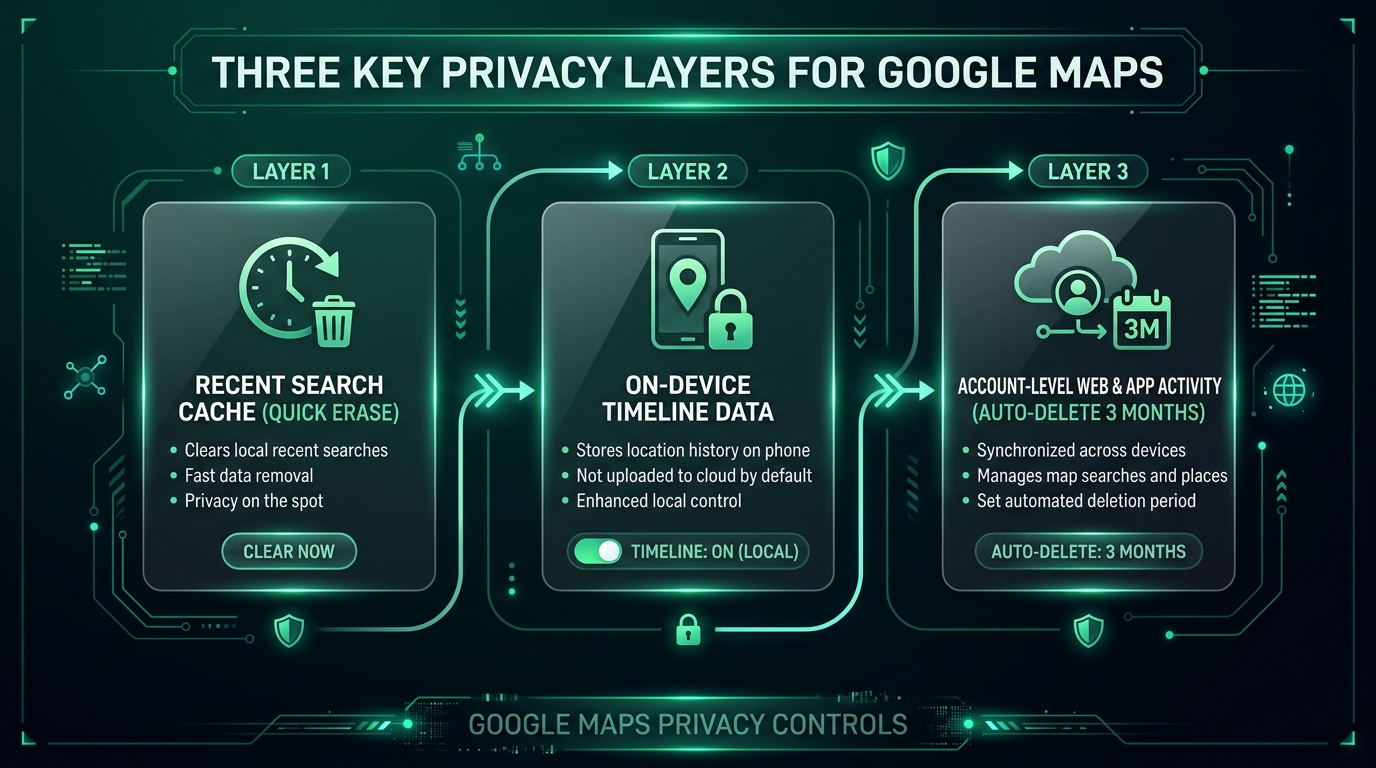
Most users assume that clearing the recent search dropdown inside the app removes their digital footprint completely. In reality, Google architecture divides your navigation data into three separate buckets:
- Recent Search Cache: The visible dropdown list of past queries stored for quick auto-complete on your phone.
- On-Device Timeline (Location History): Precise GPS coordinates, visited storefronts, and transit paths stored locally on your iPhone or Android hardware.
- Web & App Activity: Cloud-level account logs that sync map searches across every browser and device where you are signed in.
How to Clear Google Maps Search History on iPhone and Android
If you want to quickly wipe individual embarrassing searches or scrub your entire search log directly from your mobile app, follow these steps:
- Open Google Maps: Launch the app and tap your Profile Icon in the top-right corner.
- Access Maps History: Tap Settings (or Your data in Maps), then select Maps history.
- Delete Individual Queries: Scroll through the list of recent locations and tap the X (Remove) icon beside any specific address.
- Bulk Erase History: Tap the Delete drop-down menu near the search bar and choose your preferred cleanup window: Delete today, Delete custom range, or Delete all time.
Pro-Tip: If you frequently loan your phone to friends or colleagues for navigation, tap your profile icon and select Turn on Incognito mode. Incognito mode ensures that searches, routes, and place reviews are never saved to your account or device cache in the first place.
How to Delete Google Maps History on Desktop (Web Browser)
When planning road trips or researching client offices on a PC or Mac, Google logs those browser searches under your universal account activity. Just as you would master pro search operator techniques to filter online information, managing your account dashboard gives you granular control over stored data:
- Navigate to myactivity.google.com in your browser and sign in.
- Click on Web & App Activity.
- Scroll down to the See and delete activity section and click the Google Maps icon.
- Click the Delete button above the activity list to purge history by day or wipe all recorded map interactions permanently.
Purging Your On-Device Timeline & Location History
Google has fundamentally redesigned its Timeline architecture. Location history is now stored directly on your physical smartphone rather than synced unencrypted to Google’s cloud servers. To inspect or permanently erase this granular GPS path data:
- Open Timeline Settings: In Google Maps on mobile, tap your Profile Icon > Your Timeline.
- Open Privacy Controls: Tap the Three-Dot Menu in the upper right and select Location & privacy settings.
- Delete Location Records: Tap Delete all Location History or select Delete Location History range to wipe specific travel days.
Setting Up Automated Auto-Delete (Set It and Forget It)
Rather than manually purging your logs every month, configure Google’s automated cleanup retention rule. This is one of the easiest ways of securing your primary Google account against long-term data profiling:
- Go to Maps Activity Controls: Under Settings > Maps history on mobile or desktop, tap Auto-delete.
- Select Retention Duration: Choose Auto-delete activity older than 3 months (the shortest available option), 18 months, or 36 months.
- Confirm: Click Next and save your preference. Any query or location stamp older than 90 days will be permanently destroyed without manual intervention.
Preventing Unintended Background Location Tracking
Clearing your history is only half the battle. If your phone’s operating system grants Google Maps background location access 24/7, the app continues pinging nearby cellular towers and Wi-Fi networks even when closed. Just as with preventing location metadata leakage in messaging apps, you should lock down your OS permissions:
- On iPhone (iOS): Go to Settings > Privacy & Security > Location Services > Google Maps and change access to While Using the App. Toggle Precise Location off if you only need general neighborhood navigation.
- On Android: Go to Settings > Apps > Maps > Permissions > Location and select Allow only while using the app.
Final Verdict
Taking a few minutes to clean up how to clear search history in Google Maps restores privacy to your daily commute and stops your sensitive travel habits from being cataloged indefinitely. Pair a 3-month auto-delete schedule with strict background OS permissions to keep your navigation fast, reliable, and confidential.